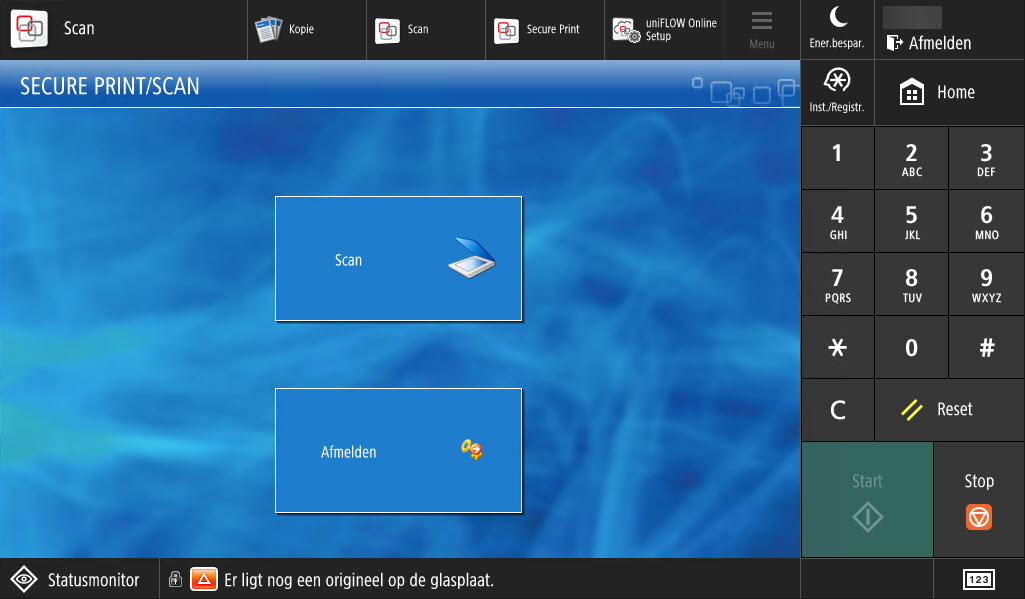
1. Go to one of the printers and log in. (Log in to a printer).
2. Tap [Secure Print Scan] on the main screen.
3. Tap [Scan] in the [SECURE QUEUE].
4. Tap [Scan to Teams].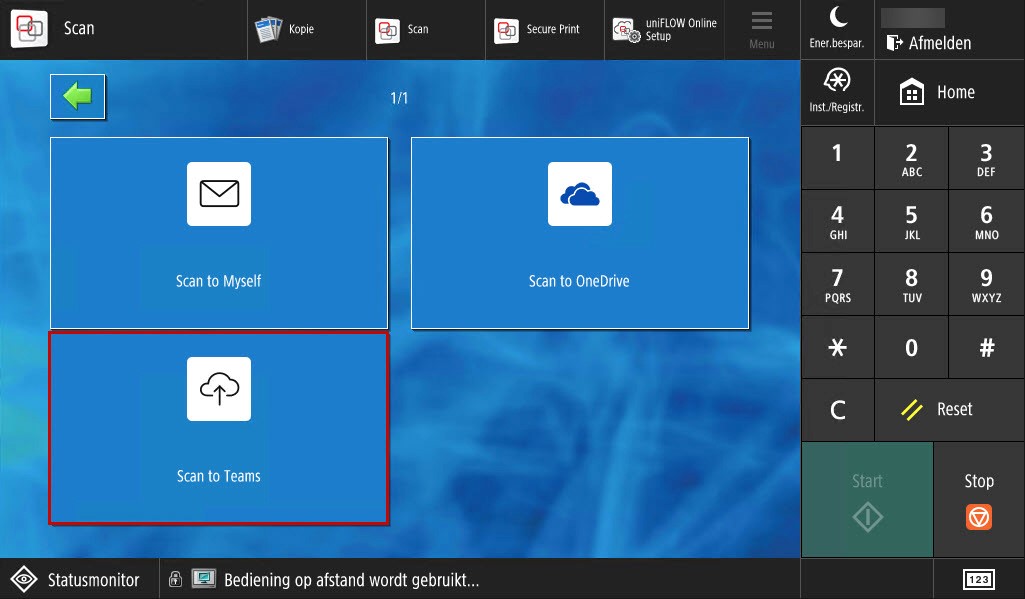
Belangrijk: De eerste keer dat je [Scan to Teams] selecteert, krijg je een melding dat uniFLOW Online nog niet verbonden is. Er is een mail verstuurd met verdere instructies.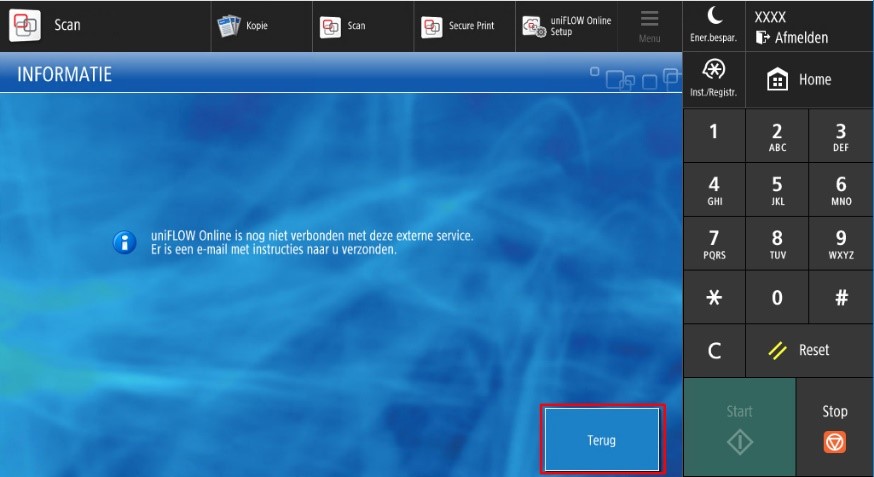
================================================================
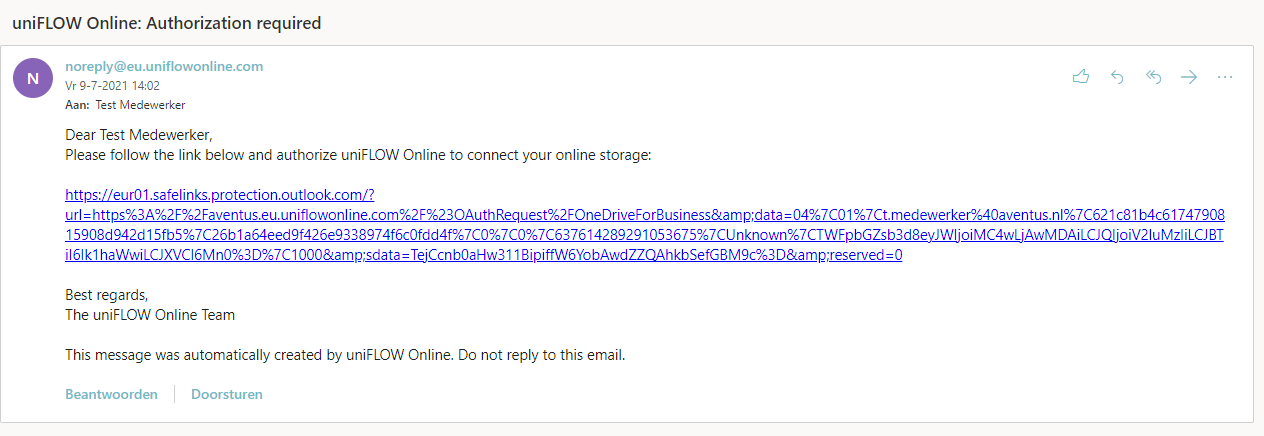
Follow the steps below to authorise uniFLOW Online:
- Click on the link the mail. The default browser will open with a page from uniFLOW Online.
- Select the xxx Microsoft 365 login here.
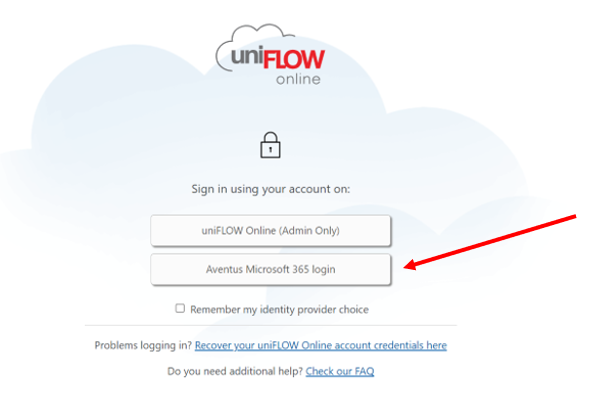
- Log in with your Microsoft 365 account (naam@xxx.nl and your password).
- On the next screen, click [Authorize].
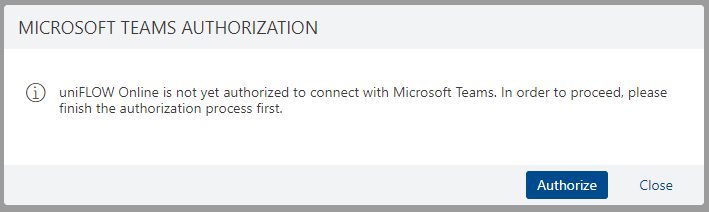
- Log in again with your naam@xxx.nl and password.
- Then the message that Microsoft Teams has been linked appears. Click [Close].
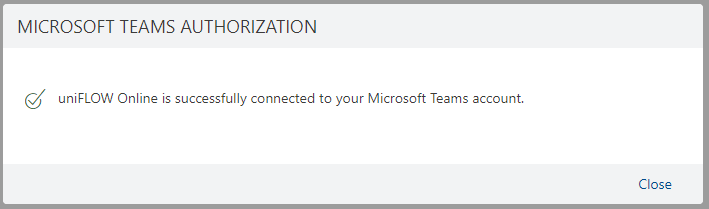
-
A page from uniFLOW Online will appear containing your data. The red frame indicates that Microsoft Teams has been successfully linked. You can now use the scan function.
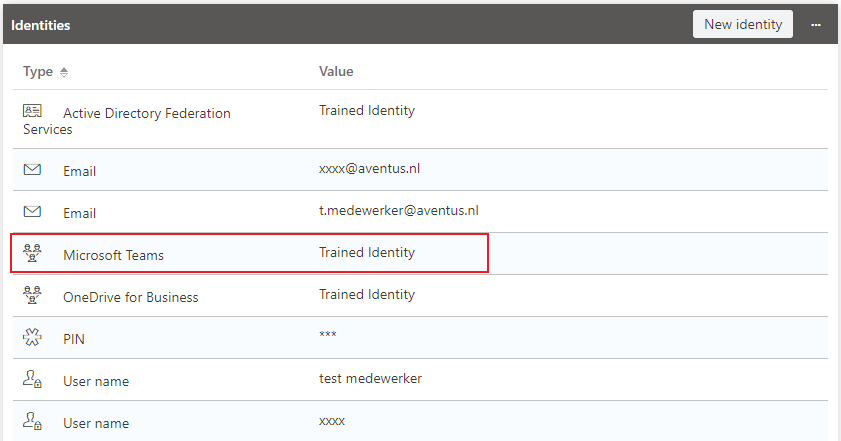
-
Close the browser and walk to the printer. Perform steps 1 to 4 again.
===============================================================
5. 5. Place the document in the document feeder or on the scanner glass.
- in the document feeder, with the text facing upwards.
Important: Multiple sheets can be placed in the document feeder. If the document is bound, damaged, consists of thin sheets or has a staple, use the platen glass.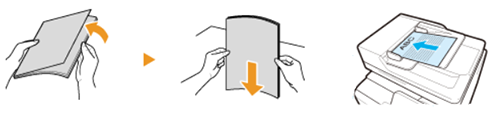
- on the glass plate, face down.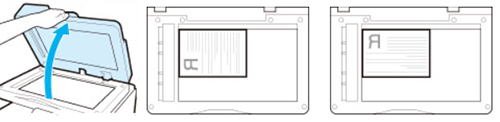
6. The scan settings are on the right-hand side of the screen.
Tip: check if you want to change the 1-sided / 2-sided and colour / black and white settings.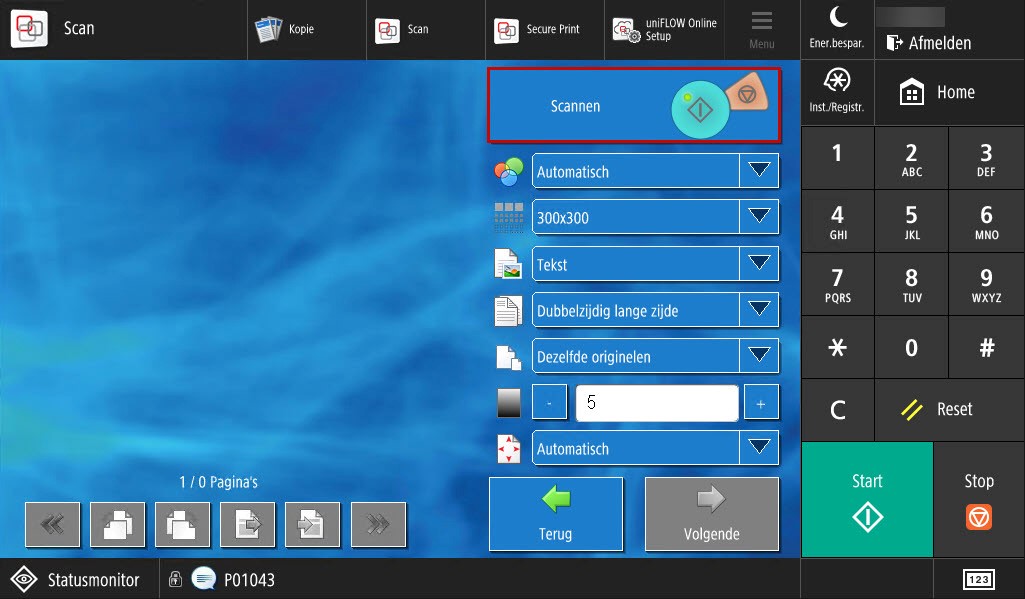
7. Press the green Start button to scan the document.
You can also start scanning by pressing the [Scan] button at the top of the touchscreen. Important: the file is only scanned and not yet sent.
8. Tap [Next].
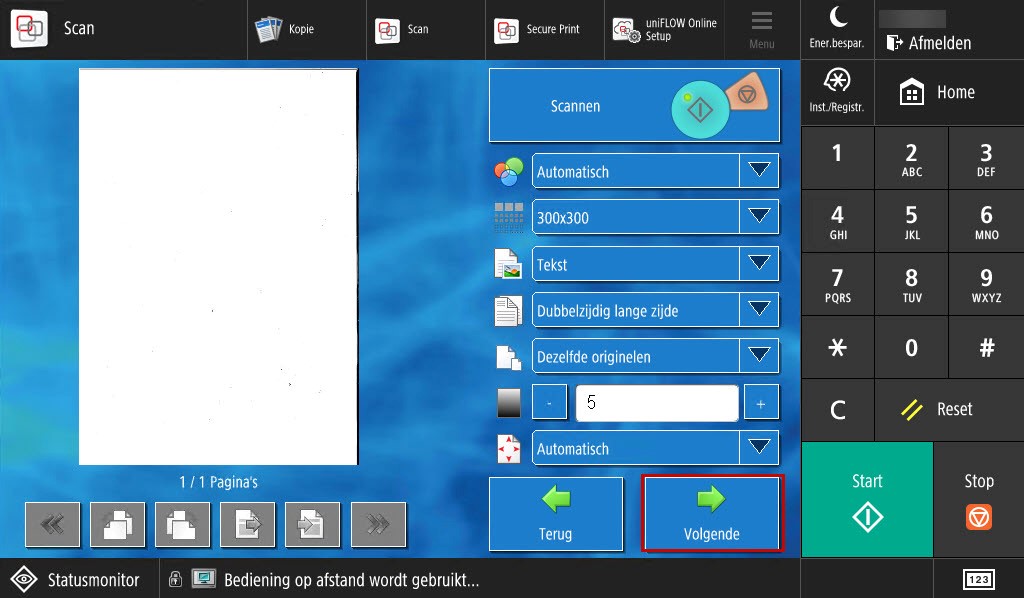
9. An overview of the Teams sites you have access to are visible.
Tap the search field and enter the name of the folder.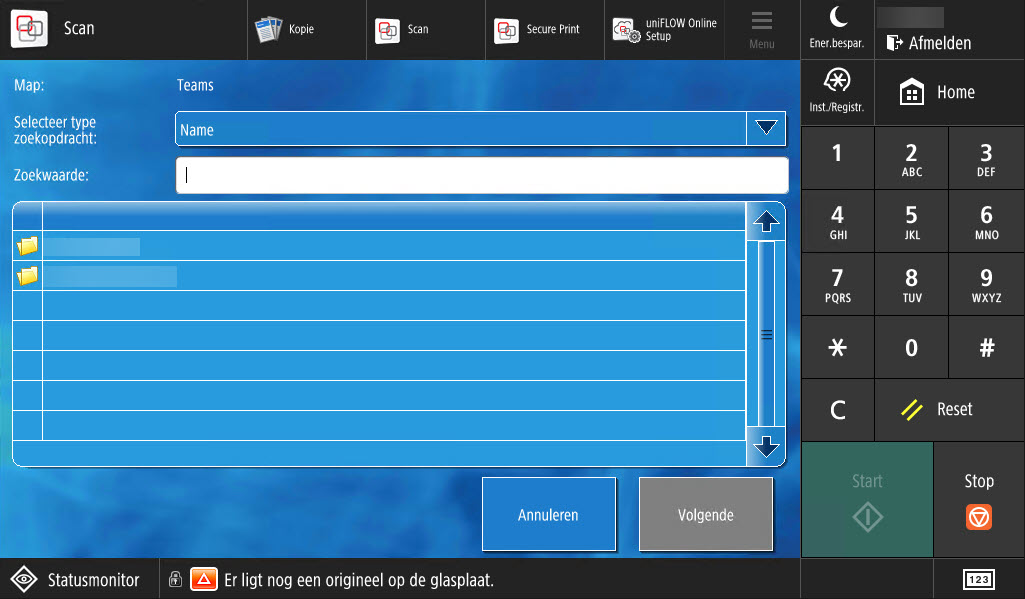
10. Tap the desired folder in the overview.
11. Tap [Next] to send the scanned document to this folder.
12. Tap [Scan] if you want to make another scan or [Log out] or place your card on the card reader until you hear a beep.