- Go to the Canon printer and log in. (Log in at a Canon printer)
- Tap [Scan] in the main screen.
- Place the document into the document feeder or on the glass plate.
- Face up into the document feeder.
Important: You can place multiple sheets in the document feeder. However, use the glass plate for a bound document, damaged sheets, thin sheets, and stapled sheets.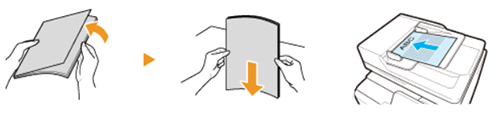
- Face down on the glass plate.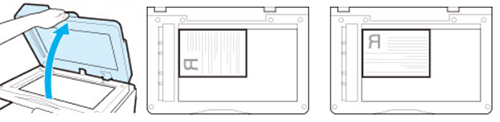
- Tap [Scan to Email].
- The scan settings are at the right-hand side of the screen.
Tip: check if you want to change the set 1-sided /2-sided and Color / Black & White properties.
- Press the green Scan or Start button.
- If you use the document feeder, all document originals are scanned.
- If you use the glass plate, the original that is on the glass plate is scanned. If your document consists of multiple originals, you can turn the sheet or put a new sheet on the glass plate. Then, again press the green button.
- Tap [Next]. The scan job is sent to your UG email.
- To log out, place your card on the card reader and wait until you hear a beep or tap [Log Out].
Scan and send a document to someone else
