Skip to main content
Ways to log in at a Canon printer
Log in with the Aventus campus card
- Put your card on the card reader and wait until you hear a beep tone.
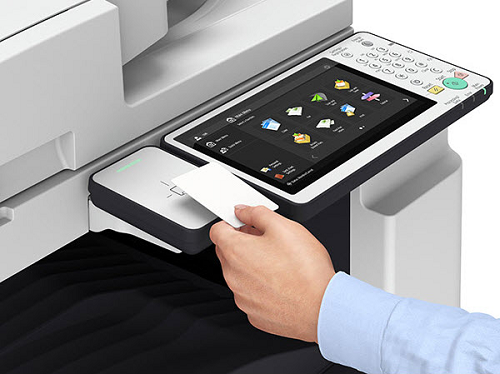
- The printer shows your new print jobs.
Log in with the Campus Print app
- Open the Campus Print app.
- Choose UM as the location.
- The first time you use the app, log in with your UM username and password or guest account.
- Tap [Log in].
- Scan the QR code on the control panel of the printer.
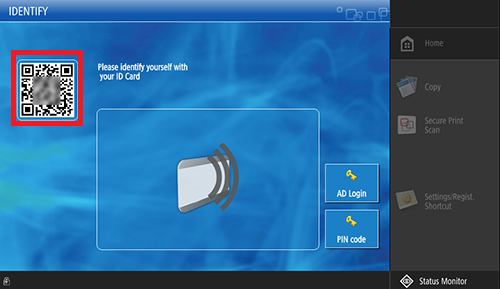
- The printer shows your new print jobs.
Log in with your PIN
- Tap [PIN code] on the control panel and enter your PIN.
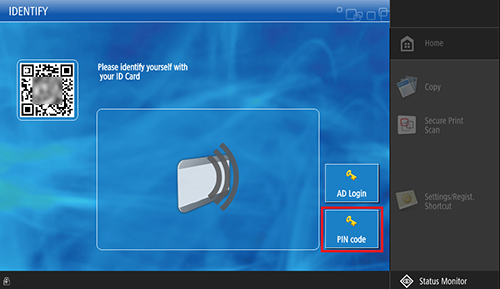
- The printer shows your new print jobs.
Log in with your Aventus credentials
- Tap [AD Login] on the control panel and enter your username and password.
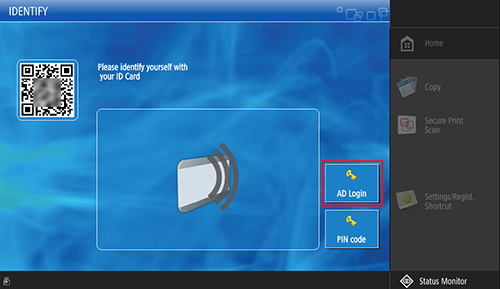
- The printer shows your new print jobs.
